 TestOwl
Test Cases
Every Test Case belongs to a single Test Suite and can reference one or more Flows to avoid duplicating common workflows.
Creating a Test Case
To create a new Test Case:
- 1Open the Test Suite where you want to create the test.
- 2Click New Test Case.
- 3The Step Editor opens with a new Test Case.
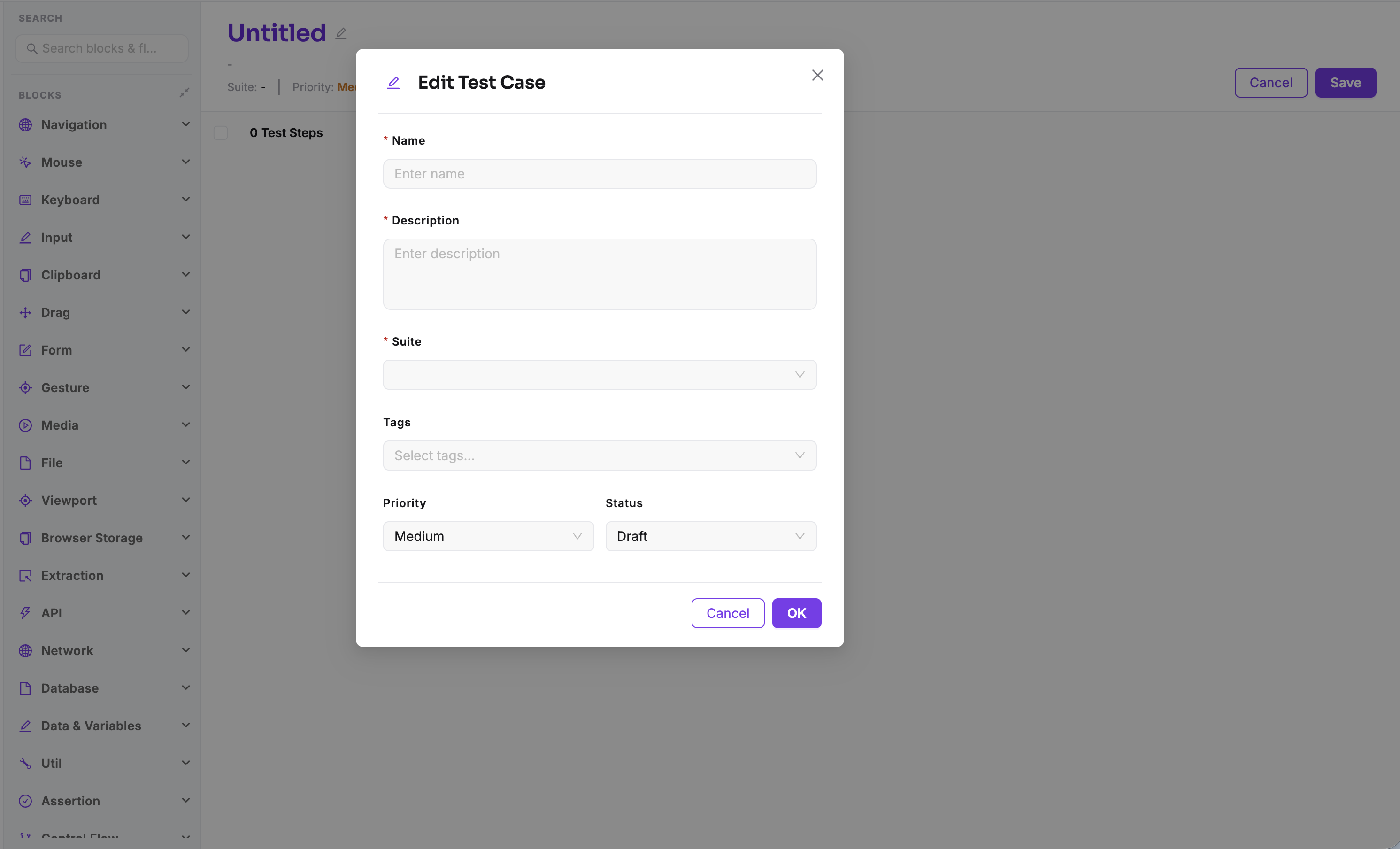
Before adding any steps, configure the Test Case details:
- Name – A clear, descriptive name for the test.
- Description – Additional information about what the test verifies.
- Suite – The Test Suite the Test Case belongs to.
- Tags (optional) – Organise and filter related Test Cases.
- Priority – Set the business importance of the test (Critical, High, Medium, or Low).
- Status – Set the current lifecycle of the Test Case (Draft, Active, or Archived).
Once the basic information is configured, build the test by recording user interactions, adding steps manually, or reusing existing Flows.
Building a Test Case
A Test Case can be built in several ways:
- Record user interactions using the Recorder.
- Add steps manually using the Step Editor.
- Reuse existing Flows.
- Combine recorded steps with manually added steps.
This flexibility allows you to create simple tests quickly while still supporting more advanced automation when needed.
Test Case status
Every Test Case has a status that indicates its current lifecycle.
| Status | Description |
|---|---|
| Draft | The Test Case is still being developed or reviewed. Draft Test Cases cannot be executed against Production environments. |
| Active | The Test Case is ready for regular execution. |
| Archived | The Test Case is retained for historical purposes and is no longer actively maintained. |
Draft Test Cases
Priority
Priorities help your team understand which failures require immediate attention.
| Priority | Typical usage |
|---|---|
| Low | Edge cases and non-critical scenarios. |
| Medium | Standard application coverage. |
| High | Important business workflows. |
| Critical | Release-blocking functionality. |
Organising Test Cases
As your project grows, keeping Test Cases organised becomes increasingly important.
You can organise Test Cases using:
- Test Suites for feature-based grouping.
- Tags for cross-functional grouping such as Smoke or Regression.
- Priority to indicate business importance.
- Status to track development progress.
Test health
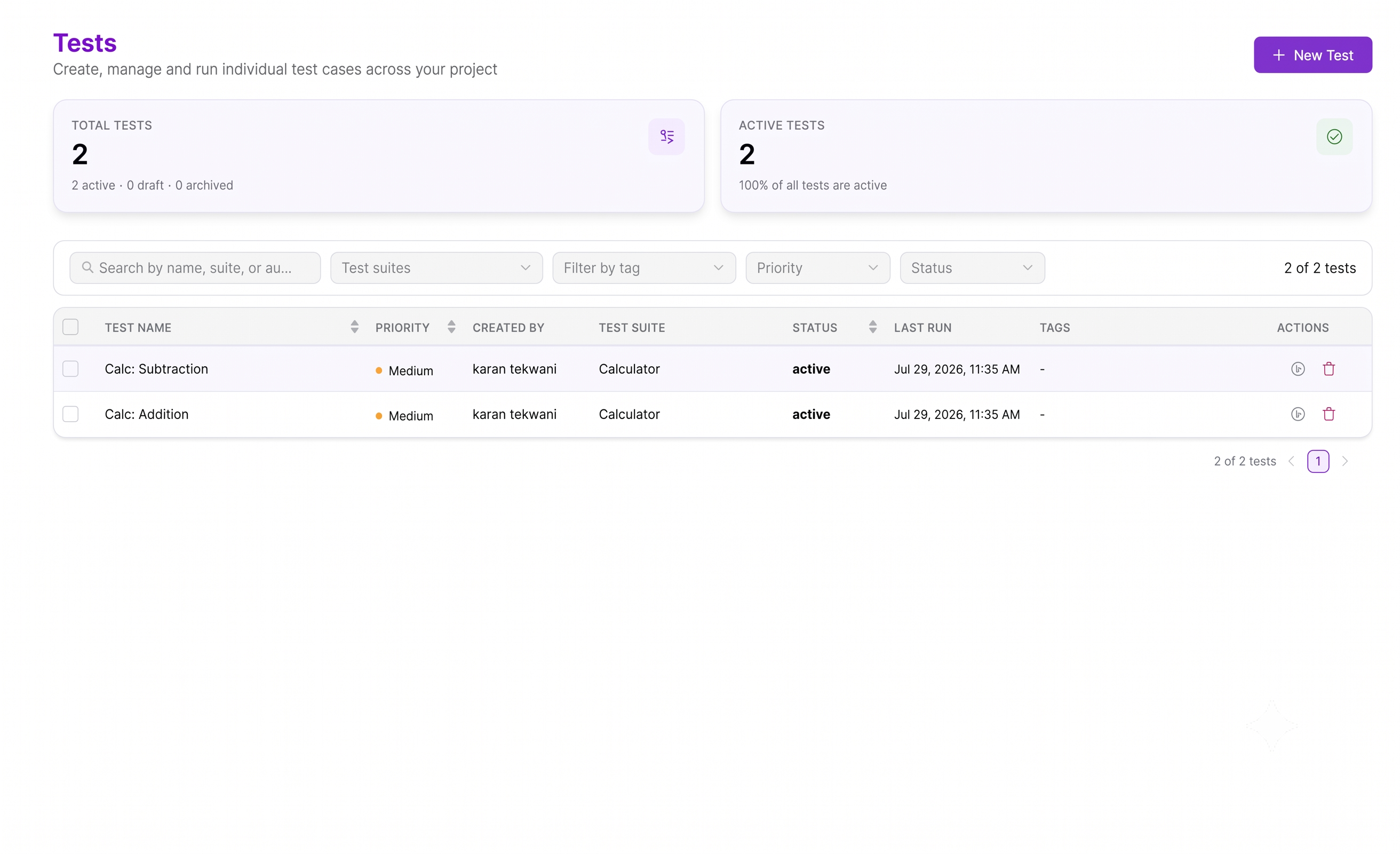
The Test Case list displays the most recent execution status for every Test Case, allowing you to quickly identify failing tests without opening individual reports.
Deleting a Test Case
Deleting a Test Case moves it to the Trash instead of permanently removing it.
Deleted Test Cases remain in the Trash for 15 days, during which they can be restored at any time.
After 15 days, the Test Case is permanently deleted and cannot be recovered.
Restoring deleted Test Cases
Permanent deletion
Best practices
- Keep each Test Case focused on a single user journey or behaviour.
- Reuse Flows instead of duplicating common steps.
- Replace hardcoded values with Variables and Secrets.
- Give Test Cases descriptive names that clearly describe what they verify.
- Review Draft Test Cases before marking them as Active.