 TestOwl
Step Editor
Editor overview
The Step Editor is divided into three main areas.
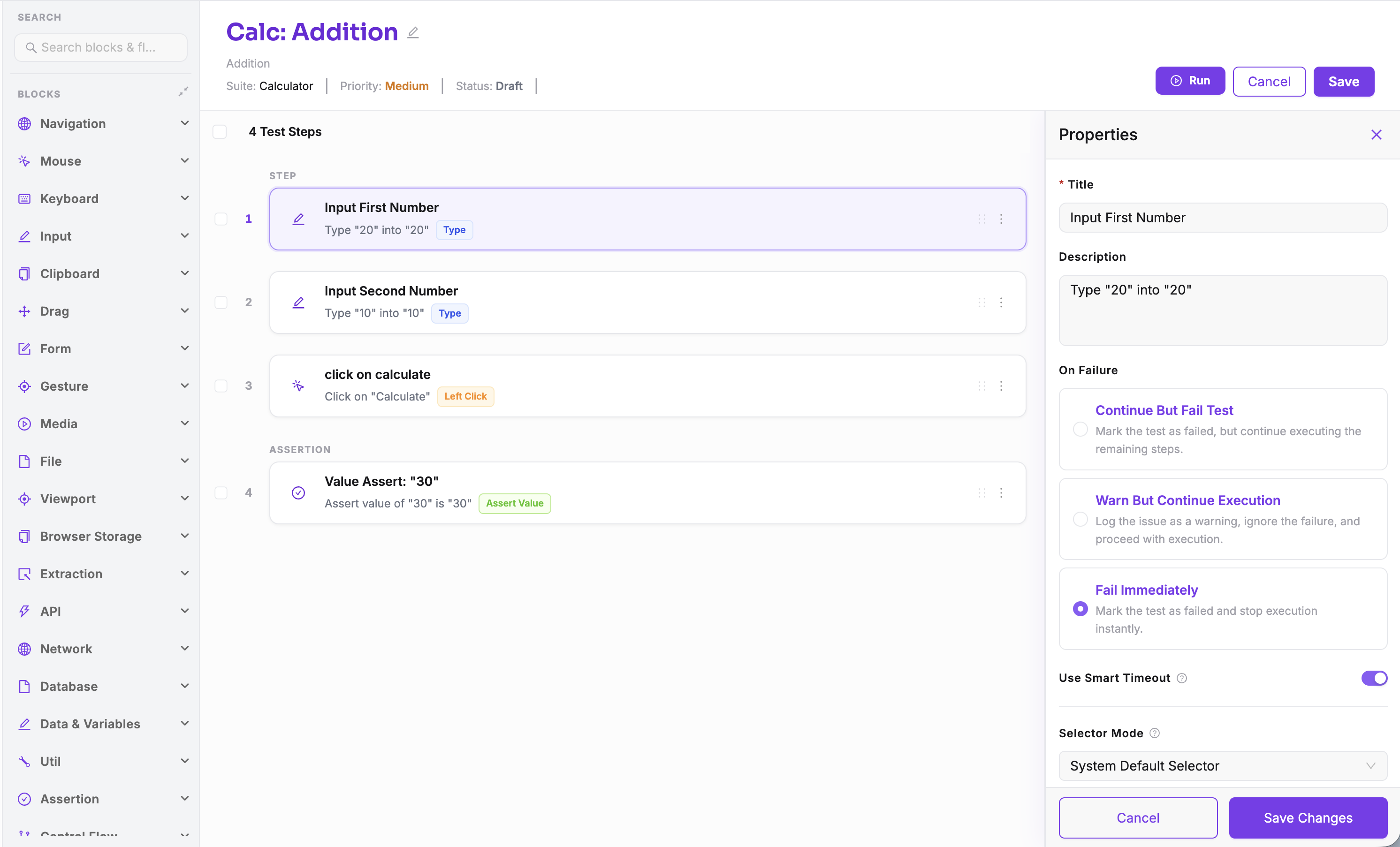
- Step Palette — Browse or search all available step types. Drag any step into the editor to add it to your test.
- Step Tree — The visual representation of your test. Steps execute from top to bottom and can be reordered at any time.
- Properties Panel — Displays the configuration options for the currently selected step.
Adding steps
There are two ways to build a test:
- Record a user journey using the Recorder.
- Drag individual steps from the Step Palette into the Step Tree.
The Step Palette contains all supported step types, organised into categories such as:
- Navigation
- Mouse
- Keyboard
- Input
- Assertions
- Wait
- Control Flow
- API
- Database
- Network
- Variables
- Utilities
If you're looking for a specific step, use the search box at the top of the Step Palette instead of browsing through every category.
Organising your test
The Step Tree makes it easy to organise even large tests.
You can:
- Drag and drop steps to reorder them.
- Move steps into or out of container steps.
- Nest steps inside control flow steps such as If, Loop, and Retry.
- Drag reusable Flows directly into your test.
Changes are reflected immediately, making it easy to restructure your test as it grows.
Editing step properties
Click any step in the Step Tree to open its configuration in the Properties Panel.
The available fields depend on the selected step. Common properties include:
- Target element
- Input value
- Assertion value
- Timeout
- Retry options
- Step-specific configuration
Many input fields also support Variables and Secrets, allowing you to avoid hardcoded values.
For example:
Instead of typing these values manually, use the variable picker available next to supported fields.
Working with multiple steps
You can select multiple steps using the selection checkboxes.
Multi-selection is useful when you want to:
- Delete multiple steps at once.
- Create a reusable Flow from a sequence of selected steps.
Saving changes
When you're finished editing, save your changes.
Each Test Case or Flow can have one of the following statuses:
- Draft — Still being created or reviewed.
- Active — Ready for execution.
- Archived — Kept for reference and no longer actively maintained.
Finding the right step
TestOwl includes a large library of step types covering everything from browser interactions to API testing, database validation, network interception, assertions, and control flow.
Rather than scrolling through every category, use the search box in the Step Palette to quickly find the step you're looking for.