 TestOwl
Triggering a Run
A run executes one or more Test Cases against one or more Environments and records the execution results.
Whether you're validating a single test or an entire suite, TestOwl lets you run your tests locally or in the cloud using the same execution workflow.
“Confidence comes from every successful test run.”
— TestOwl Team
Starting a run
You can start a run from:
- A Test Case
- A Test Suite
- The Run History page
Click Run to open the Run Configuration dialog.
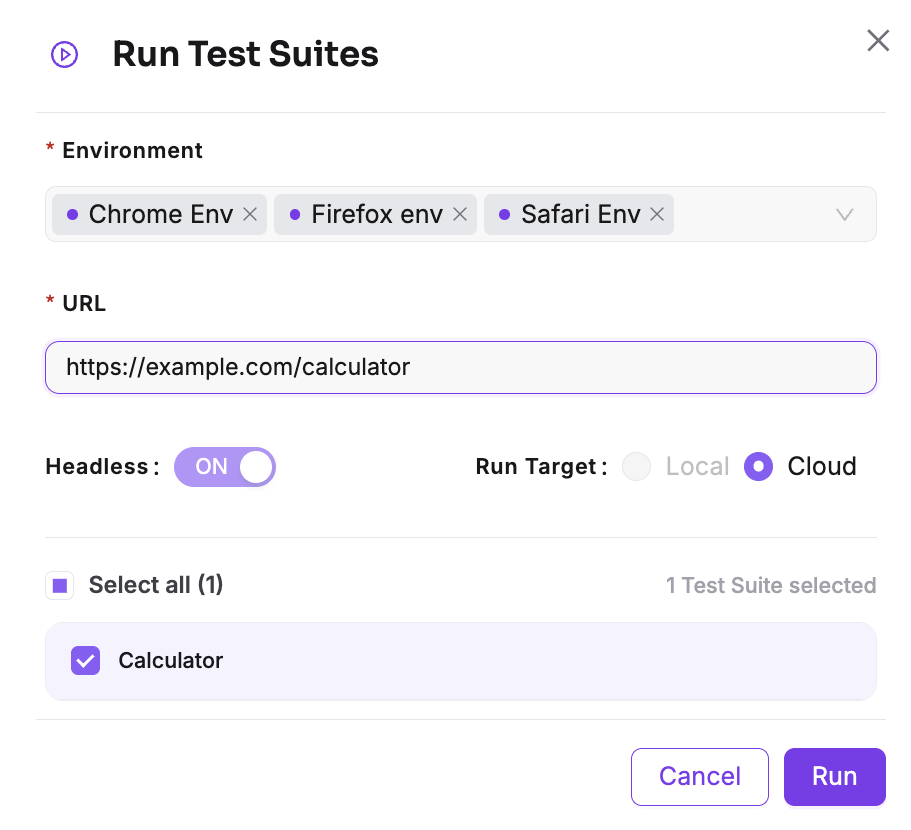
Configure the following options before starting the run:
1. Select what to run
Choose one of the following:
- A single Test Case
- Multiple Test Cases
- A Test Suite
2. Select environments
Choose one or more Environments.
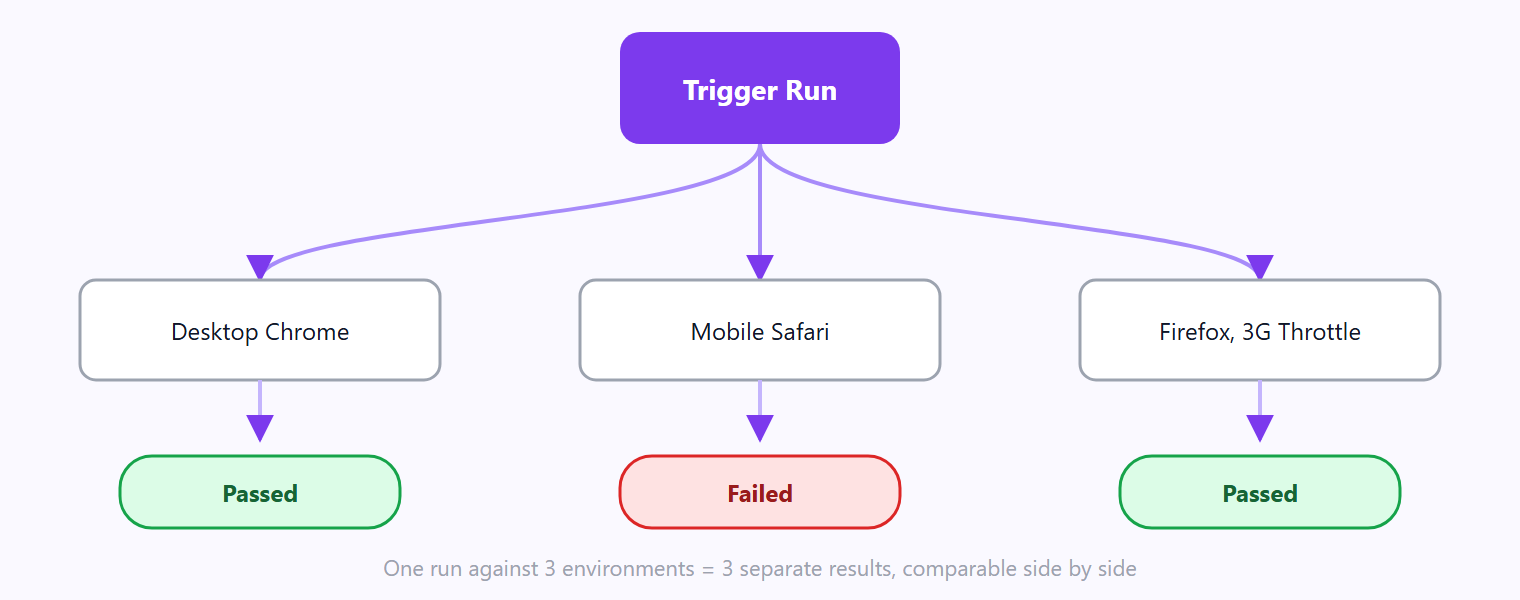
If multiple environments are selected, TestOwl executes the tests independently for each environment and generates a separate result for every environment. This makes it easy to identify environment-specific issues, such as a test that passes in one environment but fails in another.
3. Choose where to run
Select where the tests should execute:
- Local — Run the tests on your own machine using the TestOwl Desktop App.
- Cloud — Run the tests using TestOwl's cloud infrastructure.
4. Start the run
Review your selections and click Run to begin test execution.
Local vs Cloud
The Local option is available only when the TestOwl Desktop App is installed and connected. Otherwise, only Cloud execution is available.
Draft tests and Production environments
Test Cases with a Draft status cannot be executed against environments whose Type is set to Production.
This safety check helps prevent unfinished or work-in-progress tests from running against live applications.
Monitoring a run
As soon as a run starts, it appears in Run History with a status such as Queued or Running.
Execution results are updated as the run progresses, allowing you to review completed tests without waiting for the entire run to finish.
Stopping a run
You can stop an active run from the Run History page.
Cancelled runs are marked as Interrupted, making them easy to distinguish from completed runs that passed or failed.