 TestOwl
Import Wizard
Already have automated tests written using a code-based framework? The Import Wizard helps you migrate them into TestOwl by converting your existing tests into native TestOwl assets, including Flows, Test Suites, Test Cases, Variables, and Secrets.
Instead of rebuilding your automation from scratch, you can import your existing test project and continue improving it using TestOwl's no-code testing workflow.
“Migration should be a starting point, not a restart.”
— TestOwl Team
Supported frameworks
TestOwl currently supports importing tests from the following frameworks:
| Framework | Language |
|---|---|
| Playwright | TypeScript / JavaScript |
| Cypress | TypeScript / JavaScript |
| WebdriverIO | TypeScript / JavaScript |
| Puppeteer | TypeScript / JavaScript |
| Nightwatch.js | TypeScript / JavaScript |
| TestCafe | TypeScript / JavaScript |
| Selenium | JavaScript / TypeScript |
| Selenium | Java (TestNG) |
| Selenium | Java (JUnit) |
| Selenium | C# |
| Robot Framework | Robot |
| Cucumber | .feature files |
TestOwl automatically detects the framework from the uploaded project, so you do not need to select the framework manually before importing.
Import process
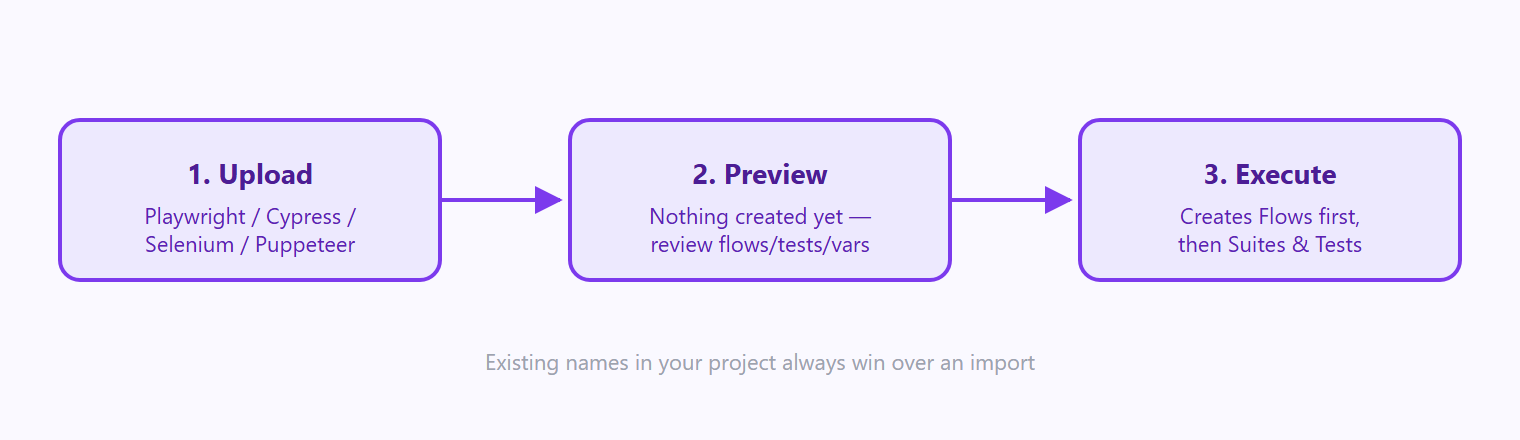
The Import Wizard follows three steps:
1. Upload
Upload your existing test project by selecting individual files or uploading a zip archive.
TestOwl analyzes the project structure and automatically identifies the framework and supported test files.
Info
2. Preview
Before creating anything in your project, TestOwl generates an import preview.
The preview shows:
- The Test Suites, Test Cases, and Flows that will be created.
- Flow detection — repeated step sequences, such as login flows, are identified and suggested as reusable Flows instead of duplicating the same steps across multiple tests.
- Variable and Secret detection — values that appear to be configuration values or credentials are suggested as Variables or Secrets instead of remaining hardcoded.
- Import confidence and warnings — each test includes a status indicating how successfully it was converted and any areas requiring review.
Review and adjust the preview before importing anything into your project.
3. Import
After reviewing the preview, start the import process.
TestOwl creates the assets in the required order:
- 1Flows are created first because Test Cases may reference them.
- 2Test Suites and Test Cases are created.
- 3Variables and Secrets are added where applicable.
If an imported item has the same name as an existing project item, TestOwl keeps the existing item instead of overwriting it.
After importing
Review the Import Session details to see everything created during the import and identify anything that requires manual updates.
The Import Wizard uses intelligent conversion to accelerate migration, but imported tests should still be reviewed before being used as your primary automation suite.
We recommend opening a few imported tests in the Step Editor and verifying that the steps, variables, and flows match your expected behavior.
Manual review may be required