 TestOwl
Reading Reports
Opening a Report
Reports are generated automatically whenever a test run starts.
You can open a Report from: Run History
Report overview
The Report begins with a summary of the entire run.
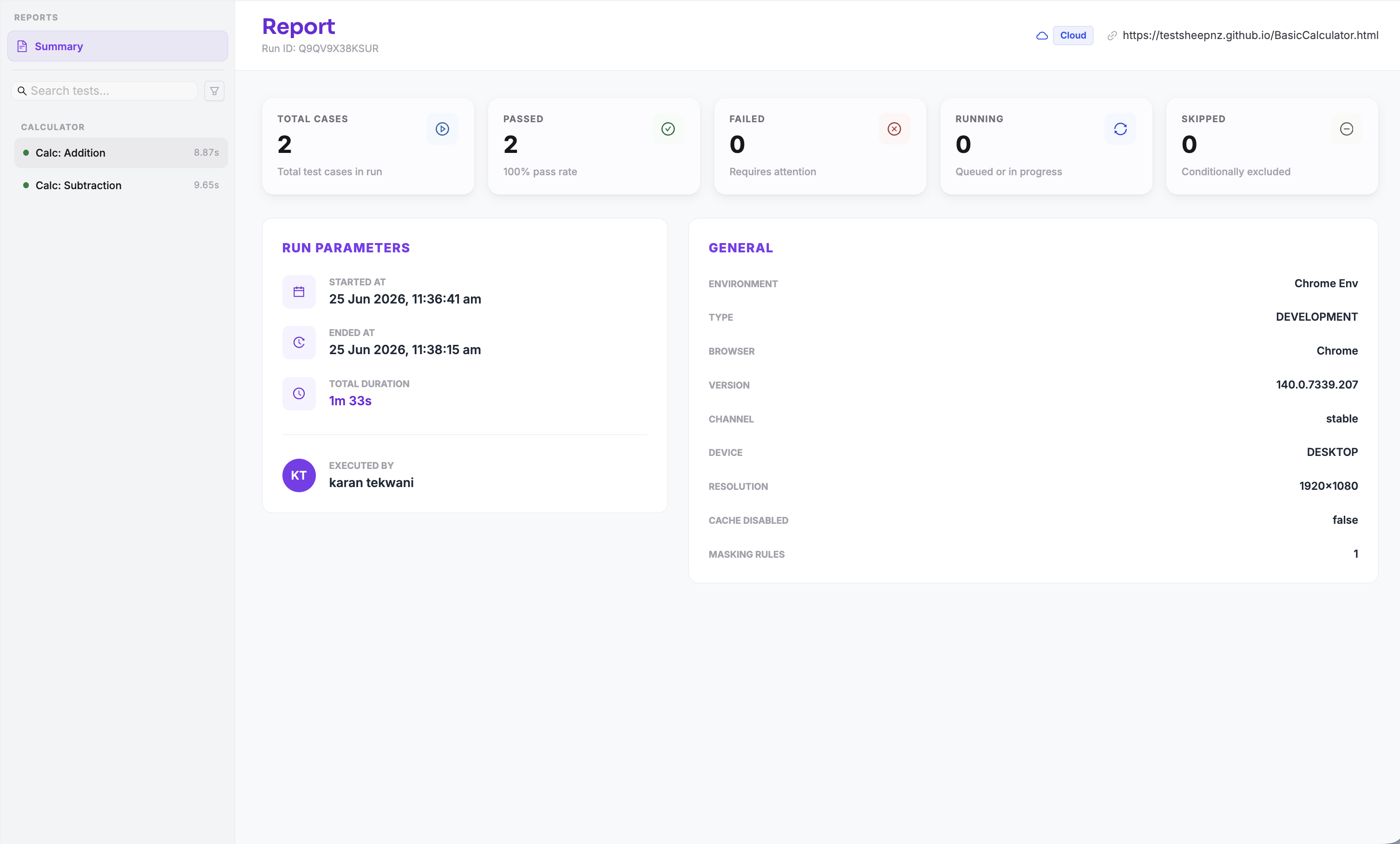
The summary includes:
- Overall run status
- Start and end time
- Total duration
- Environment used
- Execution target (Local or Cloud)
- Total Test Cases
- Passed, failed, skipped, and errored Test Cases
Below the summary is a list of every Test Case that was executed during the run. Selecting a Test Case opens its detailed execution results.
Test Case details
Each Test Case contains detailed information about its execution.
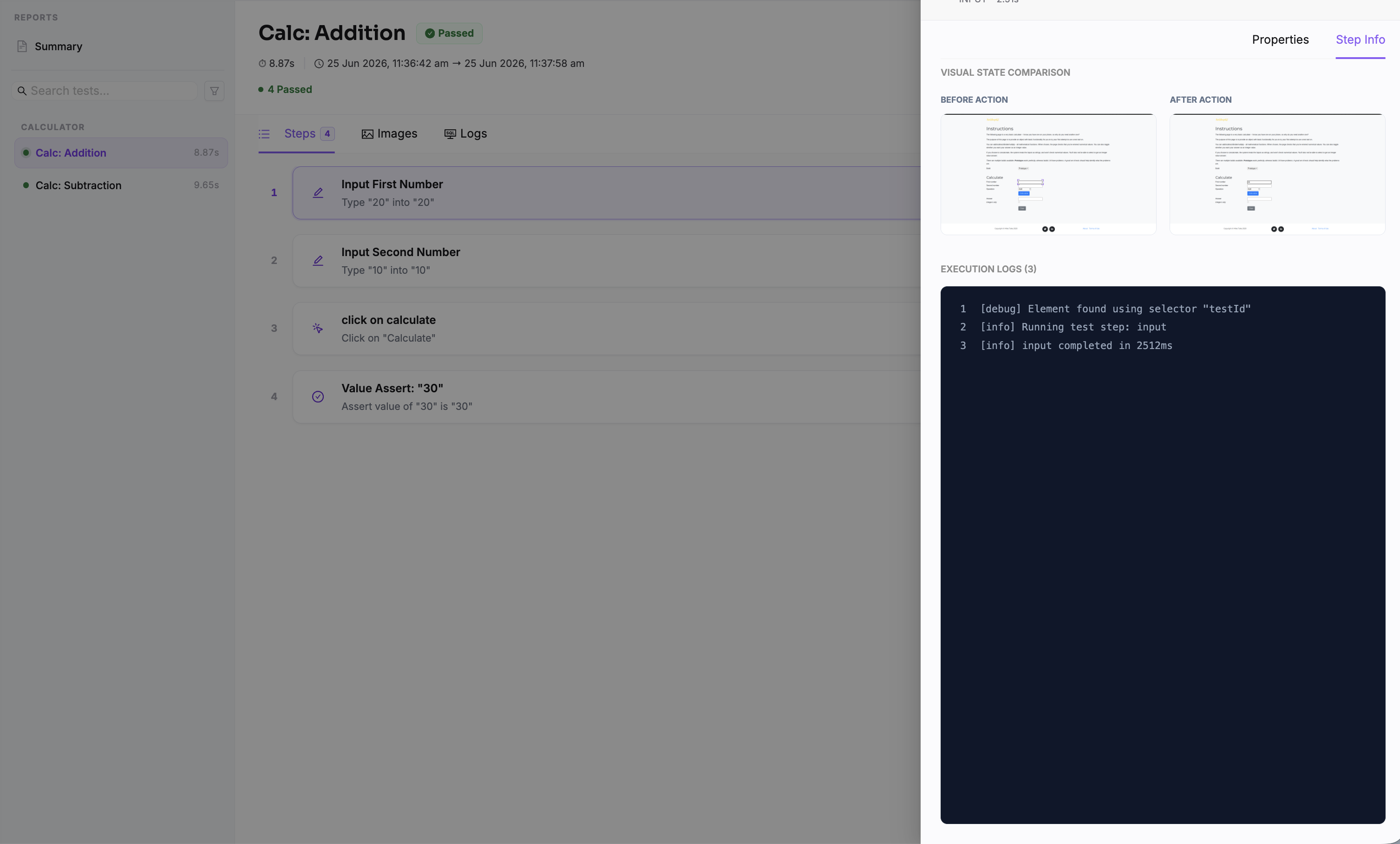
The Report is organised into the following tabs.
| Tab | Description |
|---|---|
| Steps | Displays every executed step in execution order, including expanded Flow steps, along with their execution status. |
| Logs | Shows console logs, network activity, and other execution logs captured during the run. |
| Images & Video | Displays screenshots captured during execution and the recorded video, when available. Sensitive information is automatically masked using configured Masking Rules. |
Understanding step results
Selecting a step shows detailed execution information, including:
- Step configuration
- Target element
- Input values
- Expected result
- Actual result
- Error message (if the step failed)
- Screenshot captured at the time of execution
This makes it easier to determine whether a failure was caused by an application issue, an incorrect test, or an environment-specific problem.
Live report updates
Reports update automatically while a run is in progress.
When viewing an active run, TestOwl refreshes the Report approximately every 30 seconds, allowing you to monitor execution without manually refreshing the page.
Automatic updates stop once the run reaches a final state.
Best practices
- Review failed steps before rerunning a test.
- Use screenshots and videos to investigate failures.
- Check execution logs for unexpected behaviour.
- Configure Masking Rules to protect sensitive information captured during execution.