 TestOwl
Test Suites
Why use Test Suites?
As your project grows, you'll likely create dozens or even hundreds of Test Cases. Test Suites keep them organised by feature, workflow, or functional area.
For example:
- Authentication
- Checkout
- User Settings
- Product Search
- Order Management
Every Test Case belongs to exactly one Test Suite.
Creating a Test Suite
To create a new Test Suite:
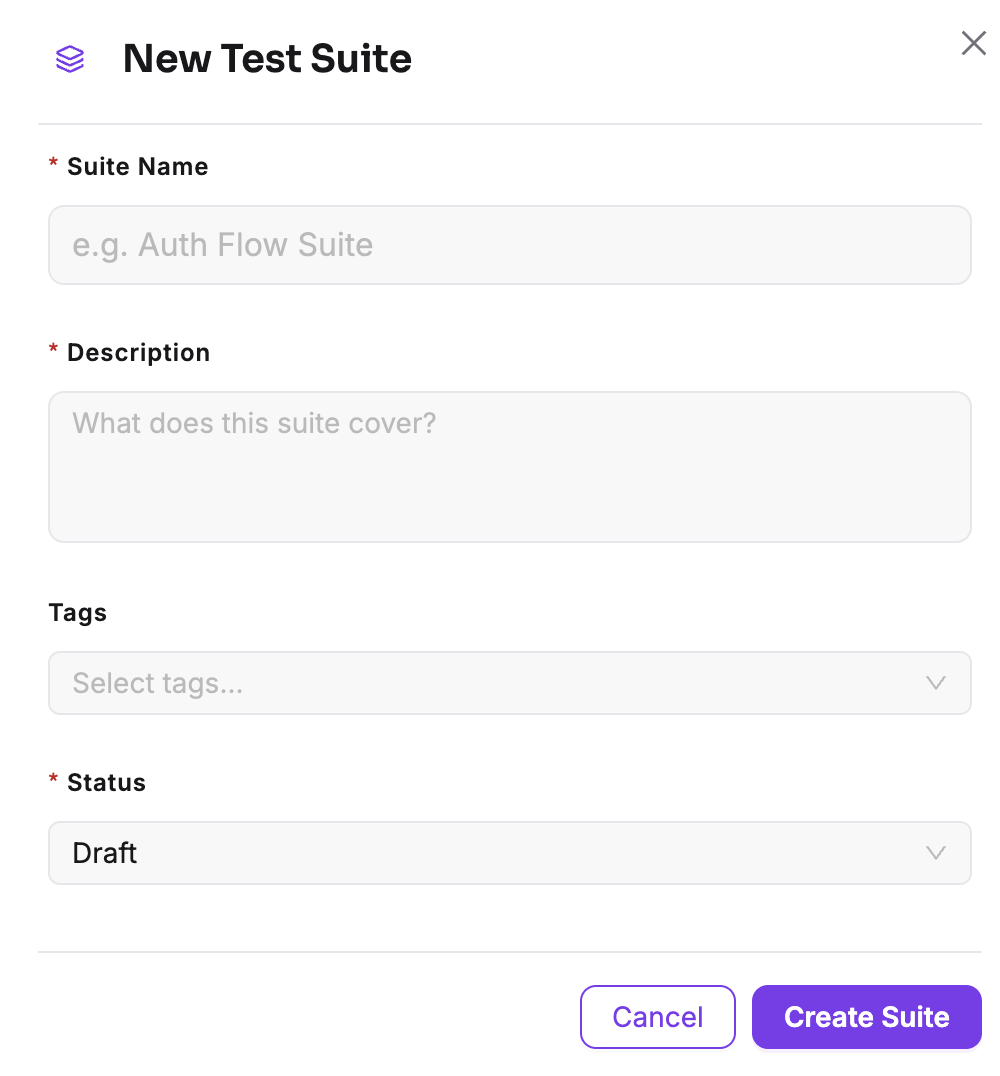
- 1Open the Test Suites page.
- 2Click New Test Suite.
- 3Enter a unique name.
- 4Add a description and optionally add Tags.
- 5Click Create.
Info
Managing Test Suites
The Test Suites page displays every suite in your project, making it easy to organise and navigate your automated tests.
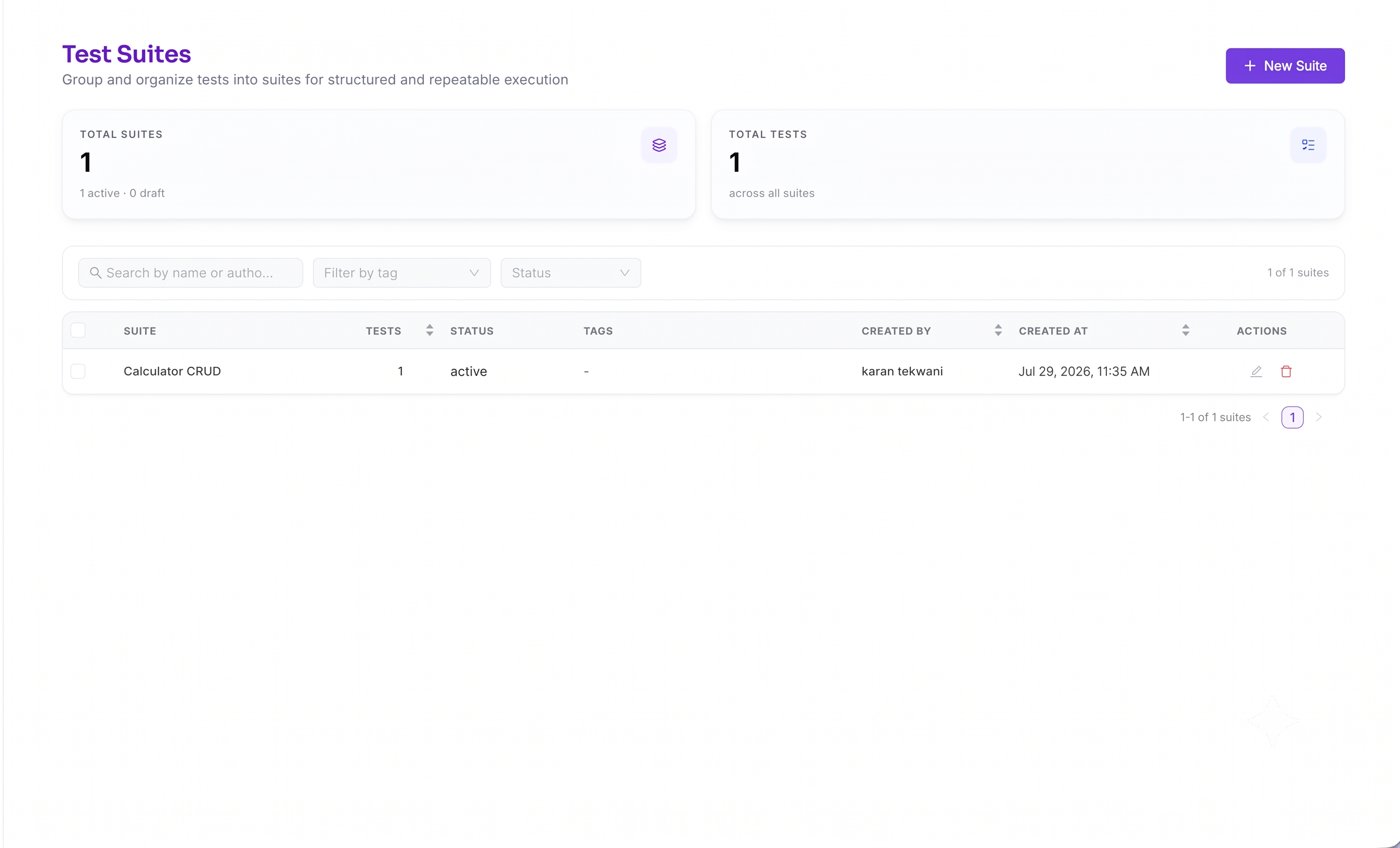
From here, you can:
- Create new Test Suites.
- Open an existing Test Suite.
- Edit suite details.
- Delete or restore suites.
- Search for a specific suite.
Working inside a Test Suite
Open a Test Suite to manage the Test Cases it contains.
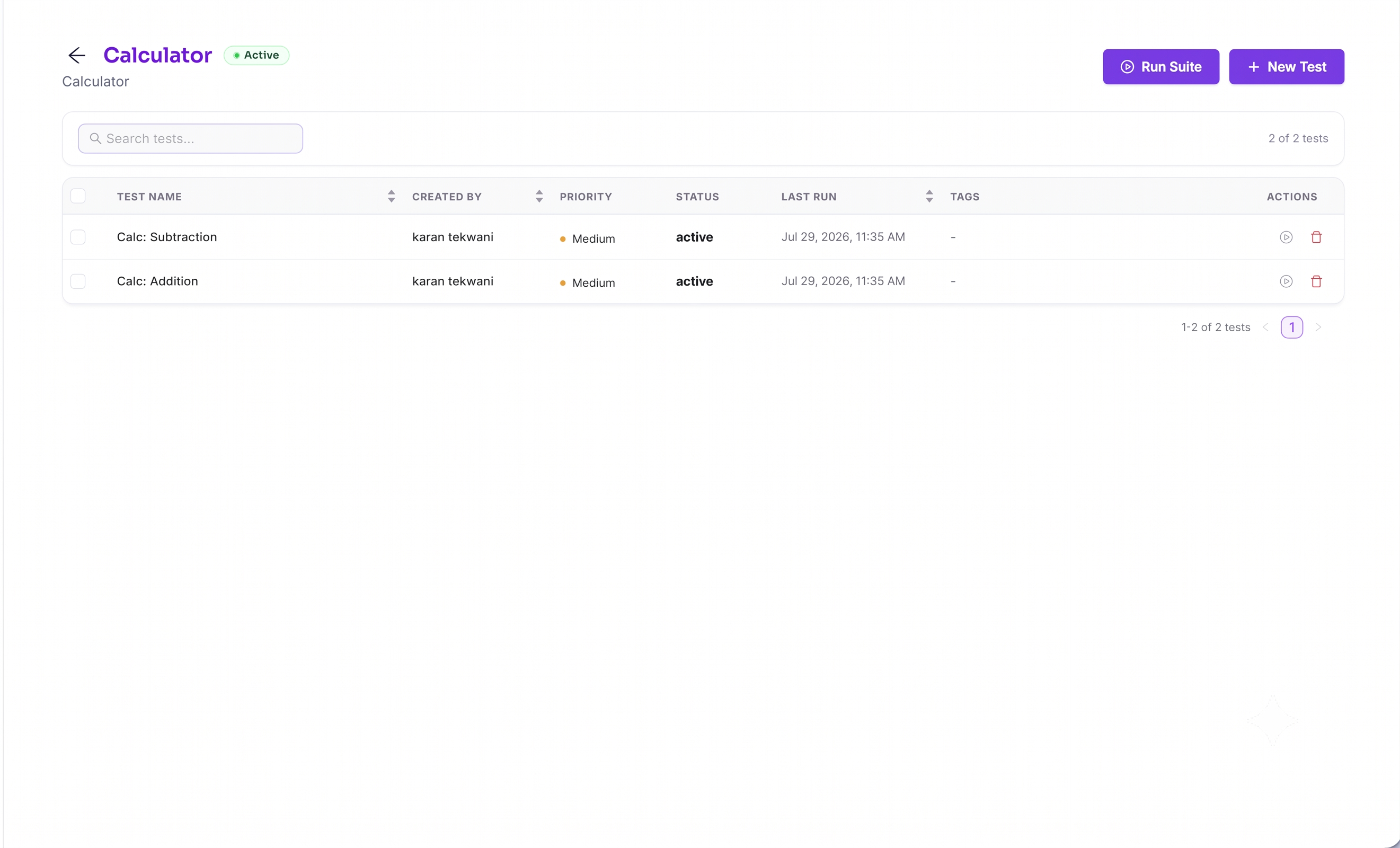
From within a suite, you can:
- Create new Test Cases.
- View and edit existing Test Cases.
- Run individual Test Cases.
- Run the entire Test Suite.
- Search and filter Test Cases.
- Move Test Cases to the Trash.
Keeping related tests together makes them easier to find, organise, and maintain as your project grows.
Suite overview
Each Test Suite provides a quick summary of its contents, including:
- Total number of Test Cases.
- Recent execution results.
- Pass and fail status.
- Tags.
This gives you a quick overview of the health of an entire feature without opening each Test Case individually.
Deleting a Test Suite
Deleting a Test Suite moves it to the Trash instead of permanently removing it.
All Test Cases inside the suite are moved to the Trash along with it.
Deleted Test Suites remain in the Trash for 15 days, during which they can be restored at any time. When a Test Suite is restored, any Test Cases that were moved to the Trash as part of the suite deletion are restored automatically.
After 15 days, the Test Suite and all of its associated Test Cases are permanently deleted and cannot be recovered.
Restoring deleted Test Suites
Permanent deletion
Organising Test Suites
A good suite structure makes projects much easier to navigate.
Some recommended practices are:
- Group suites by feature or user journey rather than individual pages.
- Use descriptive names that clearly identify the functionality being tested.
- Use Tags for cross-functional groupings such as Smoke, Regression, or Critical Path.
- Keep Test Cases focused on a single scenario rather than combining many scenarios into one test.
Best practices
- Create one Test Suite for each major feature or workflow.
- Keep related Test Cases together.
- Use consistent naming conventions across your project.
- Review and remove unused Test Suites regularly.
- Use Tags to organise tests across multiple suites.